
- Training
- Service
- Promotion
- Schedule
- Testing Center
- News
- Contact
9/1/2020


Bottom line: Learn a quick and useful shortcut to apply a filter based on a cell's value, color, or icon in Excel.
Skill level: Beginner
Video Tutorial
A Fast Way to Filter for Blanks, Errors, & Specific Values
Filtering for specific values can be a multi-step process in Excel. Especially when filtering for blanks or errors. You might find yourself scrolling to the bottom of the filter drop-down list box to apply these filters.
Fortunately, the right-click menu can save us some time here.
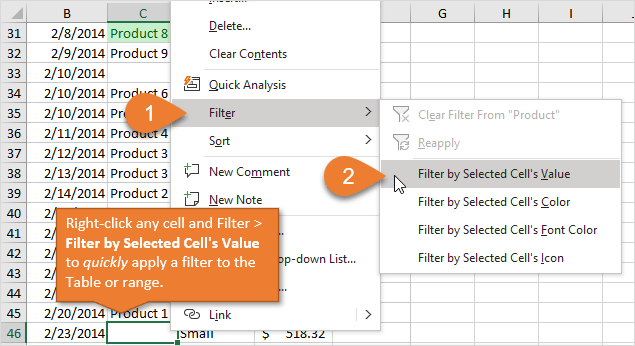
To apply a filter for a cell's value:
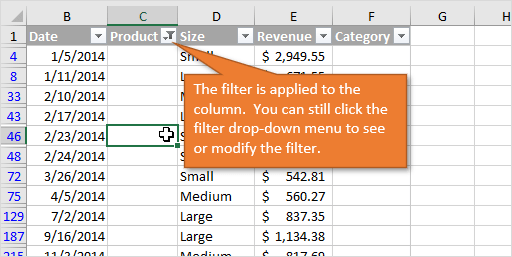
The filters will also be turned on if they are not already. This can save an additional step.
Another advantage is that you don't have to scroll up to the header row if you are not using an Excel Table or freeze panes.
Keyboard Shortcut to Filter by Cell's Value
We can also perform this task with a keyboard shortcut if your keyboard has a Menu Key.
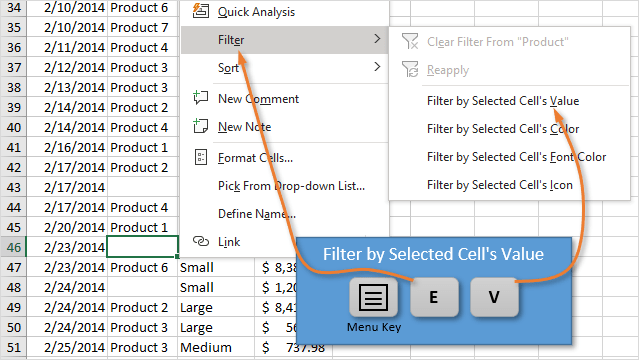
The keyboard shortcut to Filter by the Selected Cell's Value is: Menu Key, E, V
For me, this is the fastest way to apply a filter for a single value (criteria).
I explain more about the Menu Key in my article on the best keyboards for Excel keyboard shortcuts. I also share the Logitech keyboard that I use (pictured below) in that post.
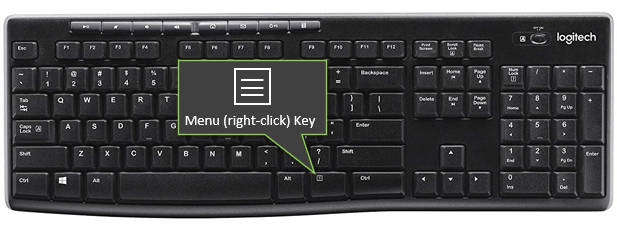
The Menu Key is also one of the fastest ways to Paste Values and I think every Excel user's keyboard should have it.
Filtering for Colors & Icons
There are also options on the right-click menu to filter by the selected cell's: Color, Font Color, and Icon. The Icon is an icon that is created by conditional formatting.
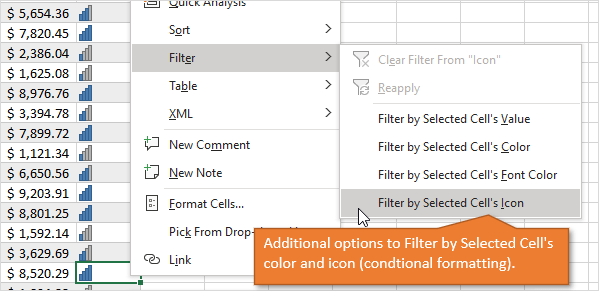
The underlined letters in each of those menu items will be the last letter in the Menu Key, E shortcut.
Filtering for Blanks and Errors
You can use this technique to filter for any single value in a column. I use it most often for blanks and formula errors.
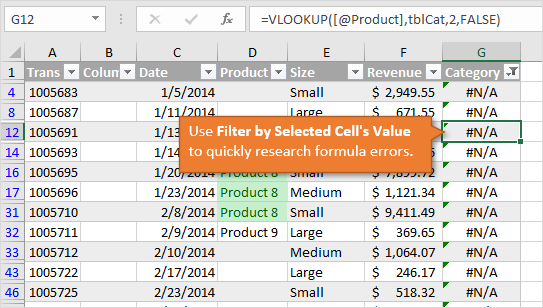
It's especially useful if you have a column of VLOOKUP formulas and want to quickly filter to see all cells that are returning an error (#N/A, #REF!, etc.)
Shortcut to Clear a Column Filter
We can also use the right-click menu to clear the filter applied to the column.
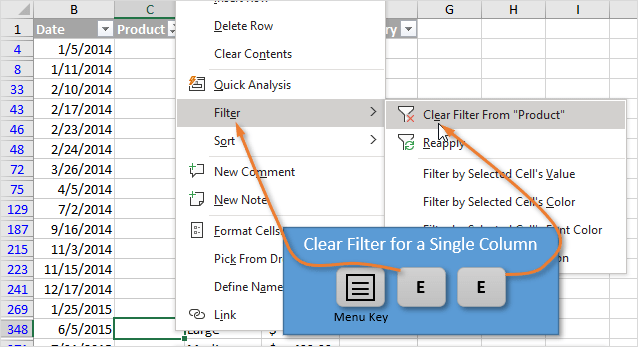
The keyboard shortcut to clear the column's filter is: Menu Key, E, E
The keyboard shortcut to Clear All Filters in all columns is: Alt, A, C
Source: Excel Campus

12/11/2025


